Self Inspection Process in BhuNeer Portal: Step-by-Step Guide for CGWA Renewal
Mandatory for renewal! Complete your BhuNeer Self Inspection by accurately recording groundwater usage, flow meter readings, water quality data, and RWH details.
Step-by-Step Guide for Self Inspection in BhuNeer
Self Inspection in the BhuNeer portal is a mandatory step for CGWA NOC renewal, where applicants must verify groundwater usage, enter flow meter readings, abstraction structure, telemetry, water quality, and monitoring well data, and upload required documents. Once submitted, a success message confirms compliance for renewal.
Initiate and Verify Existing Application Data
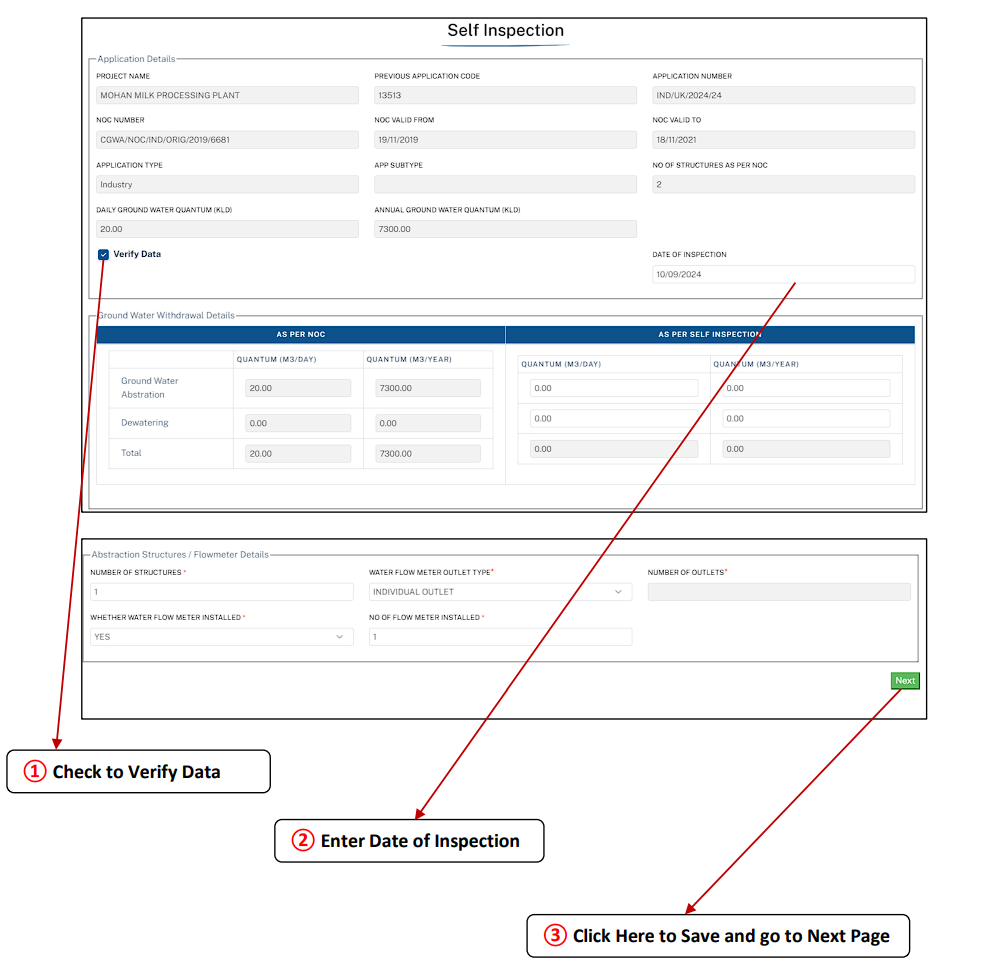
Begin the self-inspection process by verifying the pre-filled data linked to your renewal application. Ensure all fields are correct before proceeding.
- 1. Navigate to the Self Inspection tab on your application dashboard.
- 2. Check and verify the pre-filled data.
- 3. Enter the Date of Inspection.
- 4. Click on Save and Next to continue.
Record Water Flow Meter Specifications
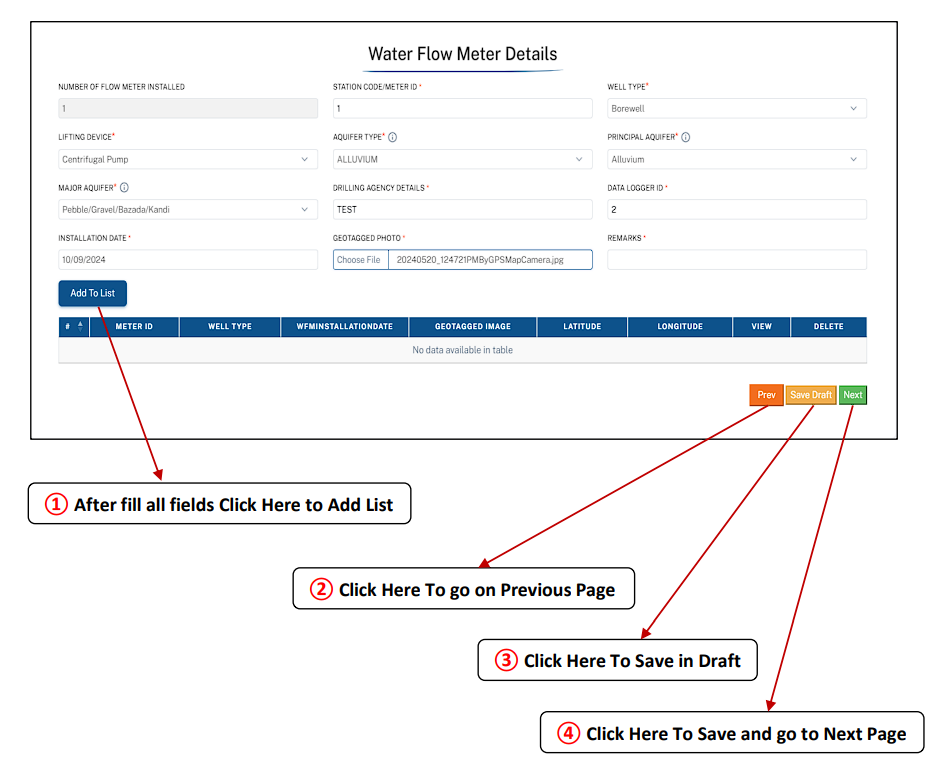
In this mandatory section, you must provide accurate details of your installed water flow meter, including specifications and calibration readings.
Action Steps:
- Fill in all required fields for the flow meter.
- Click on Add to List to save the entry.
- Use Save in Draft if you want to edit later.
- Click Save and Next to move forward.
Update Abstraction Structure Details
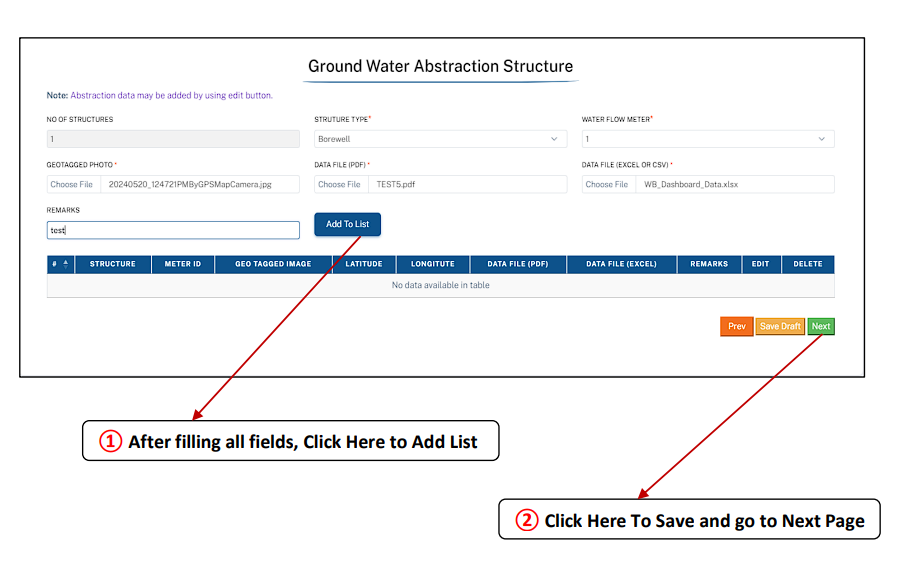
Here, you need to enter updated details about your borewell or tubewell structure used for groundwater abstraction, including depth and construction status.
Action Steps:
- Fill all fields related to the abstraction structure.
- Click on Add to List to save the details.
- Click Save and Next to proceed.
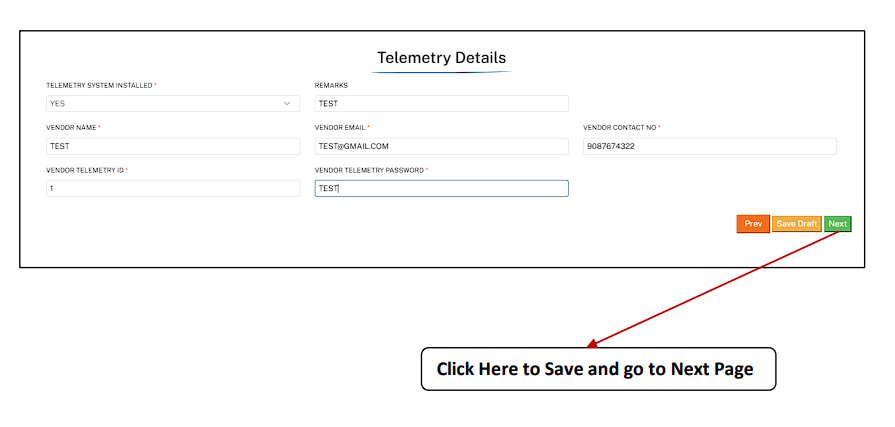
Provide Telemetry Device Information
Telemetry refers to automated devices used for remote monitoring of groundwater data. Enter telemetry information, including device specifications and functionality status, if installed.
Action Steps:
- Provide details of the telemetry device installed.
- Click Save and Next to move to the following tab.
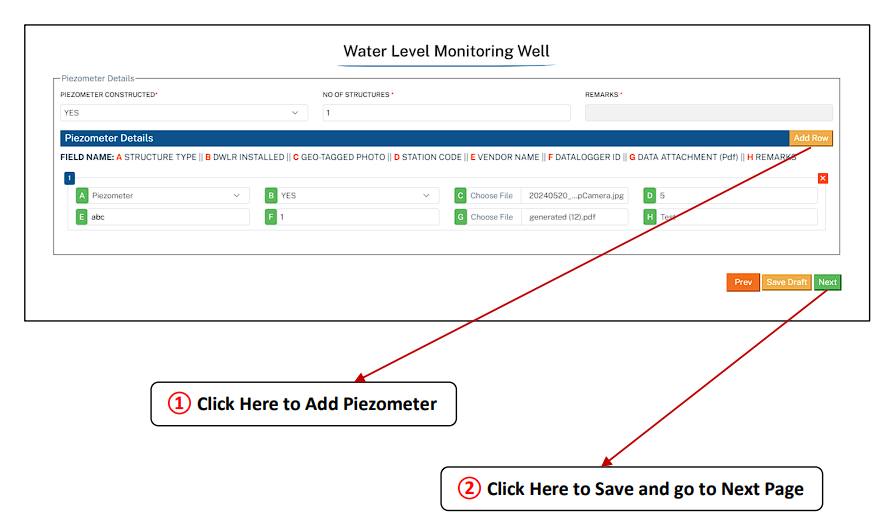
Record Water Level Monitoring Well Data
This section requires information about piezometers or monitoring wells used to record static and dynamic groundwater levels.
Action Steps:
- Click on Add Piezometer to input details.
- Enter all required fields such as location, depth, and recent readings.
- Click Save and Next to proceed.
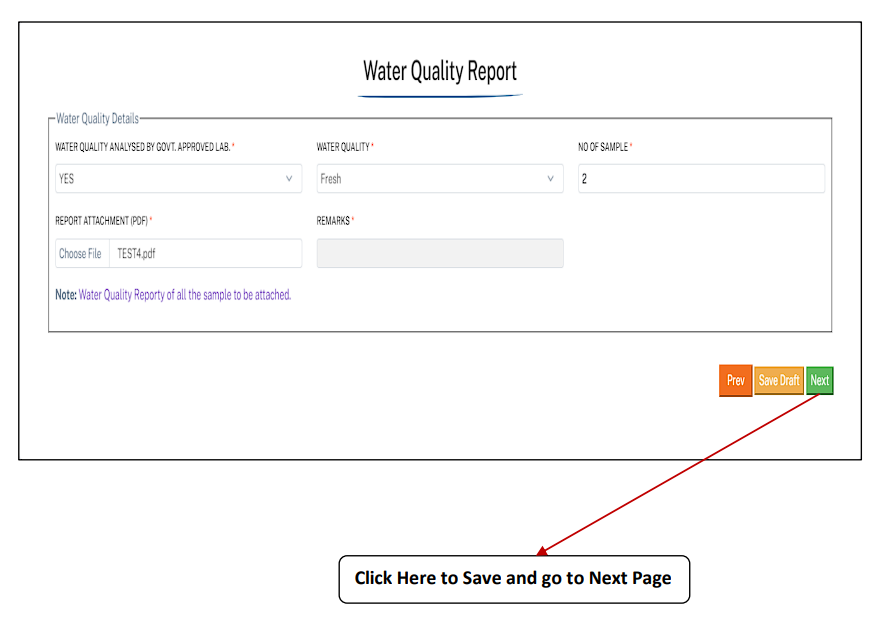
Upload Water Quality Test Report
This tab is used to upload and record results from recent laboratory water quality tests, demonstrating that the abstracted water meets required standards.
Action Steps:
- Fill in all required fields related to the water quality report
- Upload supporting documents (lab reports).
- Click Save and Next to continue.
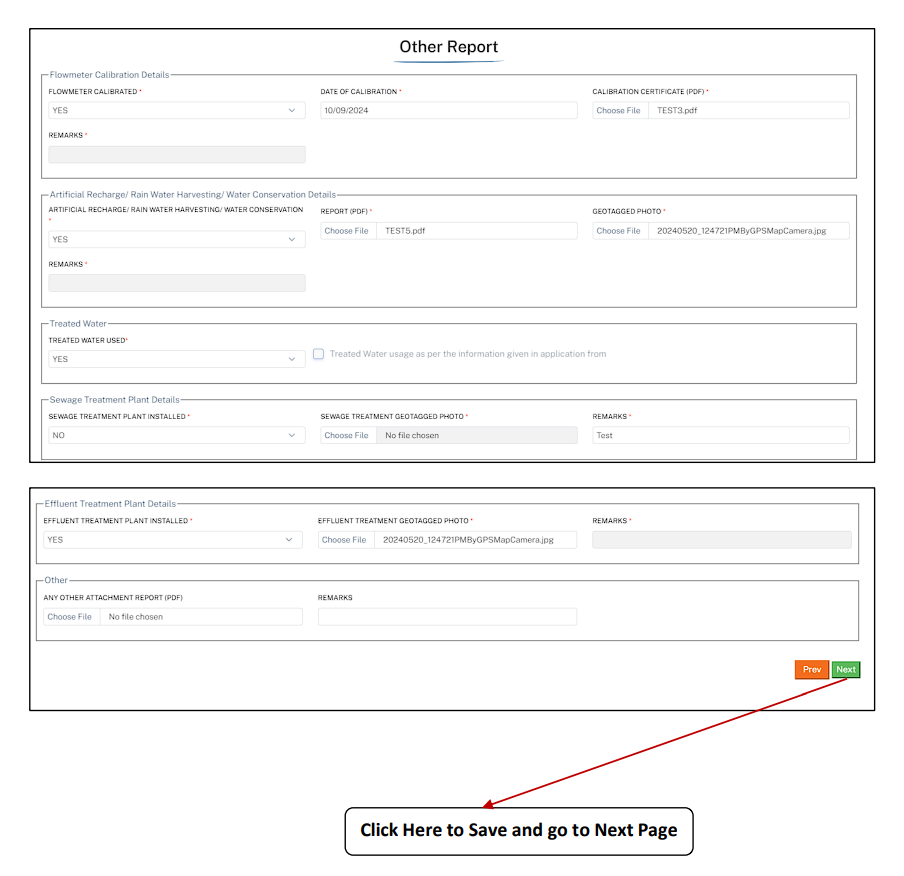
Upload Additional Compliance Reports
Any additional reports required for compliance, such as environmental audits, water audit reports (if mandatory), or detailed RWH functionality reports, must be uploaded here.
Action Steps:
- Enter relevant details in the “Other Report” tab.
- Attach supporting documents if applicable.
- Click Save and Next to move ahead.
Review Penalties and Final Submit
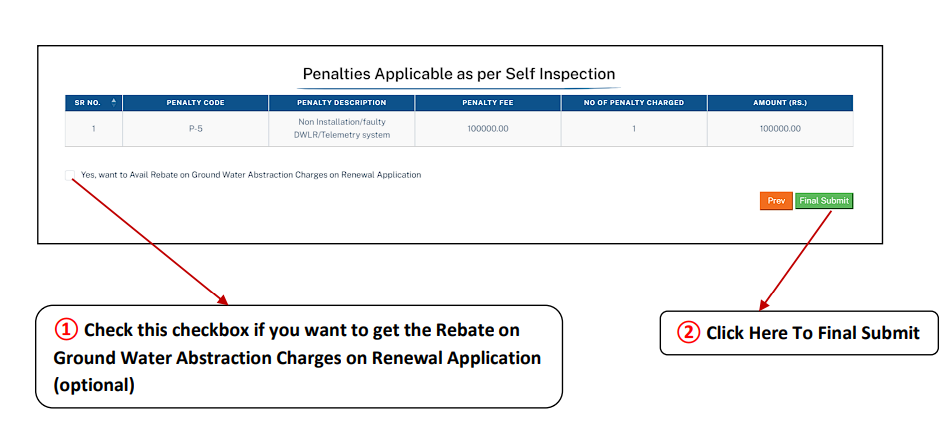
The final step involves reviewing potential penalties and submitting the completed self inspection form. You may also apply for rebate on abstraction charges here.
Final Action:
- Check the box if you are applying for Rebate on Ground Water Abstraction Charges (optional).
- Review the applicable penalties.
- Click Final Submit to complete the self inspection.
- A success message will appear confirming submission.
CRITICAL WARNING: Self Inspection is Mandatory for Renewal
The Self Inspection process must be completed accurately for your CGWA NOC Renewal application to proceed. Inaccurate data or failure to submit required reports can lead to the application being rejected or penalties being imposed for non-compliance with the Authority’s monitoring requirements.
Essential CGWA Process Guides
- → Step by step process to register on Bhuneer portal
- → Step by Step guide to apply for New CGWA NOC
- → Step by step guide for renewal of CGWA NOC
- → Step by step process for import of NOCAP Application from CGWA portal
- → CGWA Penalty Provisions & Legal Consequences
- → CGWA NOC Guidelines for Bulk Water Supply
- → CGWA Monitoring and Penalties (2025-26)
- → Environmental Compensation Rules (EC)
- → National Building Code (NBC) 2016 Water Requirements
Request Your Free CGWA Compliance Quote
Simplify your CGWA NOC application process 2025. Get expert support for application filing, document preparation, and compliance.
Call Us Today: 9279550247
Frequently Asked Questions (FAQs) on CGWA Self Inspection in BhuNeer Portal
1. What is Self Inspection in the BhuNeer portal?
Self Inspection is a mandatory process under CGWA where applicants verify their groundwater usage, update details such as flow meter, abstraction structures, telemetry, monitoring wells, and upload required reports before NOC renewal.
2. Where do I find the Self Inspection option?
After logging into the BhuNeer portal, navigate to your application dashboard and select the Self Inspection tab, which is linked directly to your CGWA NOC renewal application.
3. What major details do I need to provide in the Self Inspection process?
You must accurately fill in data across multiple technical tabs, including: Water Flow Meter Details, Groundwater Abstraction Structures, Telemetry (if installed), Water Level Monitoring Wells (piezometers), and the Water Quality Report.
4. What documents need to be uploaded during Self Inspection?
Yes. You must upload documents such as the CGWA NOC certificate, compliance reports, current Water Quality Test Reports, calibration certificates of flow meters, and geo-tagged photographs of RWH structures where applicable.
5. Can I save my self inspection progress and complete it later?
Yes. Each tab within the inspection process provides a Save in Draft option. This allows you to save your entered data and resume the inspection later before clicking Final Submit.
6. What happens after completing all tabs in Self Inspection?
Once all sections are correctly filled and documents uploaded, you must click Final Submit under the Penalties section. A success message will appear, and a new Application Code will be generated, confirming compliance for renewal.