REGISTER ON BHUNEER PORTAL: Step-by-Step Guide for CGWA NOC Users
Your complete guide on how to register on the official Bhuneer Portal (cgwabhuneer.mowr.gov.in). Learn the entire new user setup process, from mobile verification to company profile finalization.
Bhuneer Portal Registration – Step by Step Guide
If you want a CGWA NOC, you must first register on the Bhuneer Portal. The process is very simple and can be done online through cgwabhuneer.mowr.gov.in. Below I am explaining everything in easy language.
Initiate User Registration on Bhuneer Portal
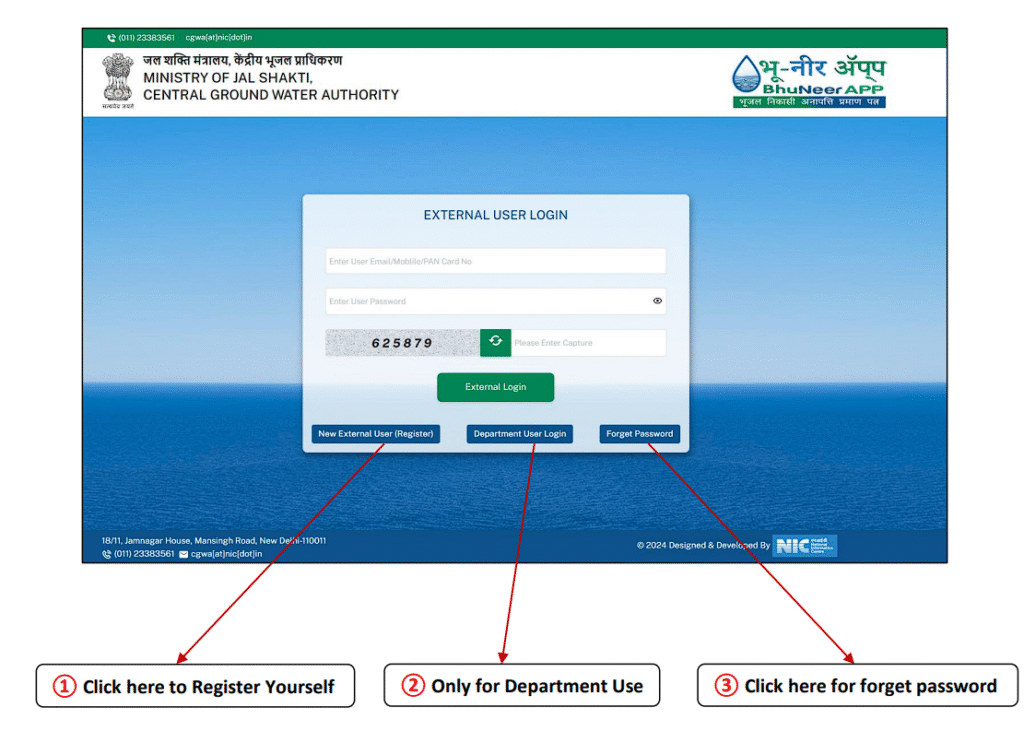
To access the Bhuneer app / Bhuneer portal, registration is the first step. Follow these initial steps and refer to the image for better understanding.
- 1. Go to Bhuneer Portal (cgwabhuneer.mowr.gov.in login)
- 2. On the homepage, click “Register Yourself” (Other options like Only for Department Use and Forget Password are also there).
New External User Registration & Submission
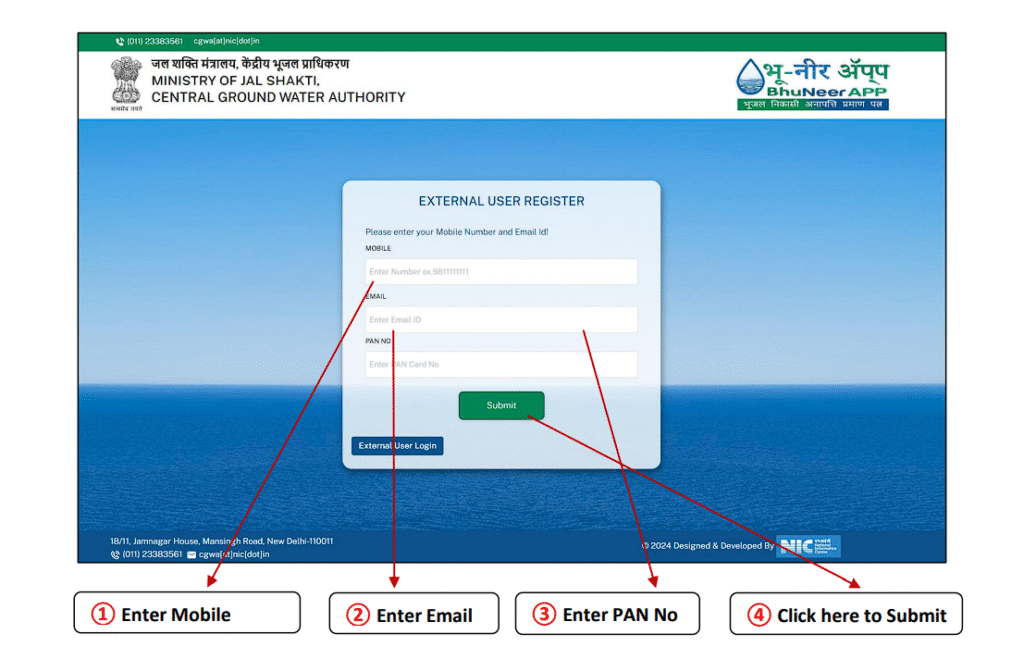
After clicking on “Register Yourself”, you will be redirected to the External User Registration form. Enter your primary details for verification.
Required Registration Details:
- Enter Mobile Number
- Enter Email ID
- Enter PAN No
- Click here to Submit
A single OTP will be sent to your Mobile Number and Email Id for verification.
OTP Verification for Mobile and Email
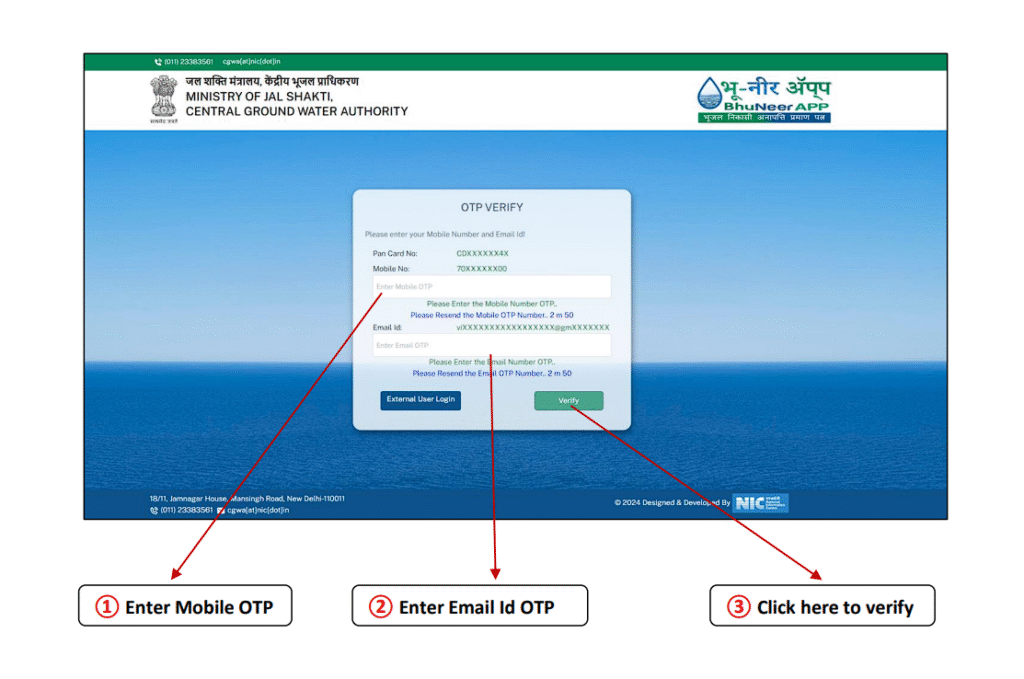
An OTP will be sent to both your registered mobile number and email ID. Enter the OTPs in the respective fields and click Verify.
Verification Fields:
- Enter Mobile OTP
- Enter Email OTP
- Click here to Verify
After successful verification, you will proceed to the password creation page.
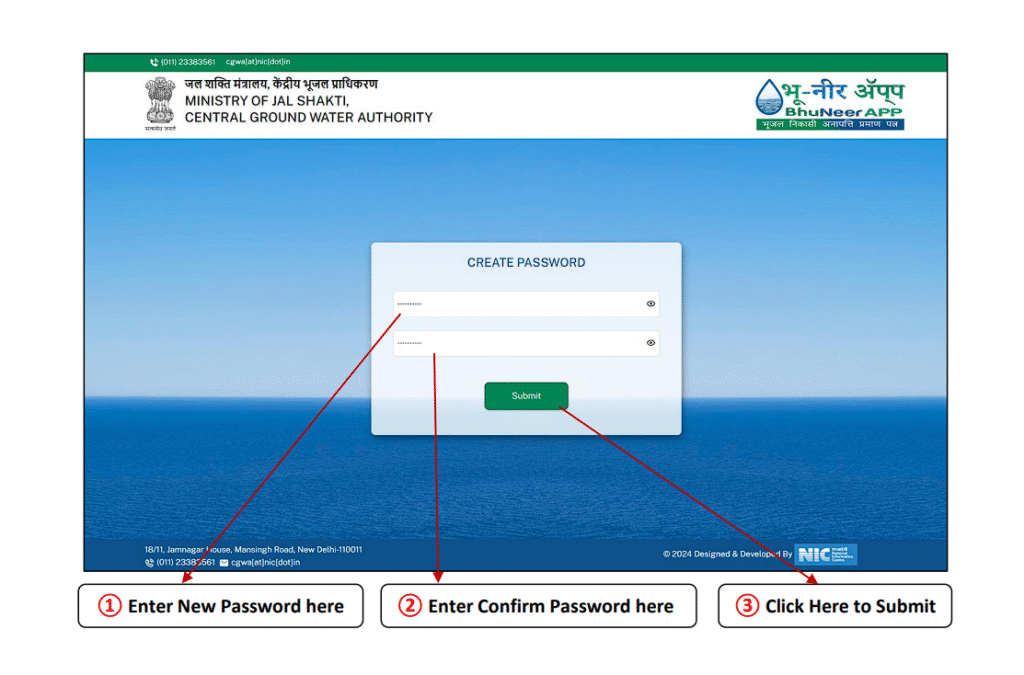
Create Secure Login Password
After successful OTP verification, the user will be redirected to the password creation page, where a secure alphanumeric password must be set.
Password Setup:
- Enter New Password here
- Enter Confirm Password here
- Click Here to Submit
After successful creation of password, you will be redirected to the Login page.
First Login to the Bhuneer Portal
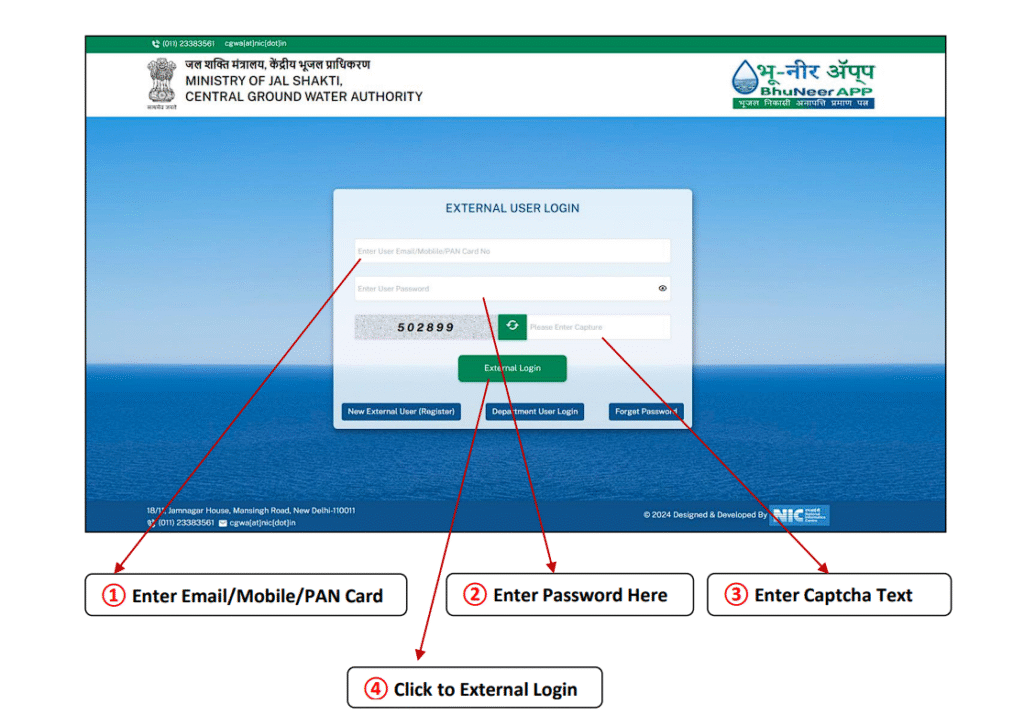
After completing registration and password creation, use your new credentials to log in to the Bhuneer Portal for the first time.
Login Credentials:
- Enter Email/Mobile/PAN Card
- Enter Password Here
- Enter Captcha Text
- Click to External Login
After successful login, you will be redirected to the User Profile setup page.
Complete User Profile Setup
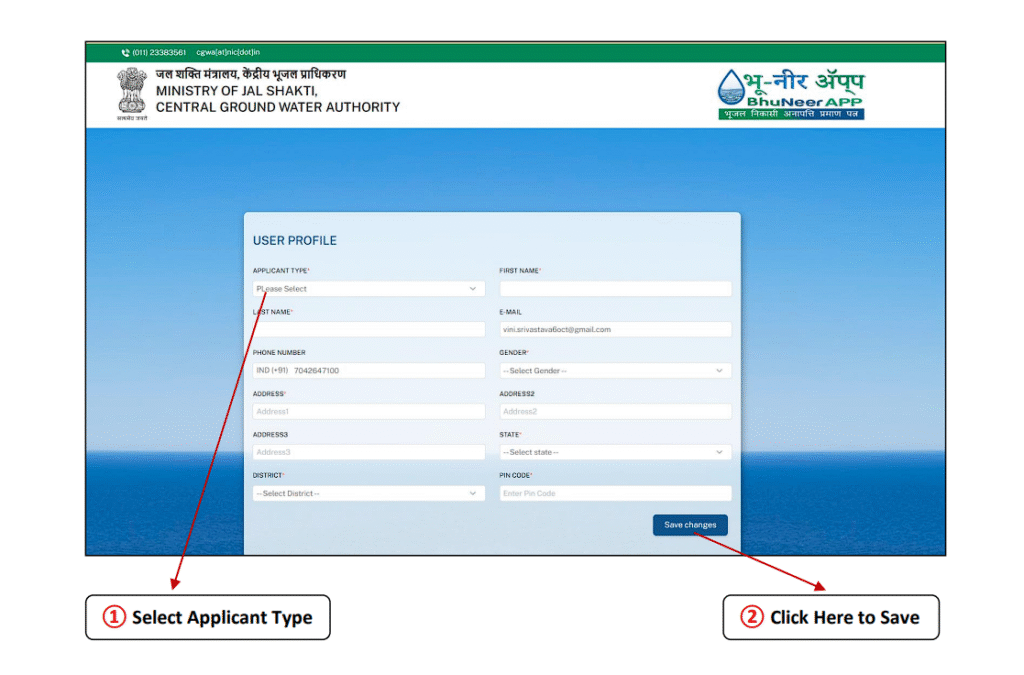
You will be directed to the User Profile page. Fill in your personal and contact details accurately.
User Profile Fields:
- Select Applicant Type
- Fill Name, Email, Phone No., Address
- Click Here to Save Changes
After saving, you must proceed to the Company Profile setup.
Complete Company Profile Setup
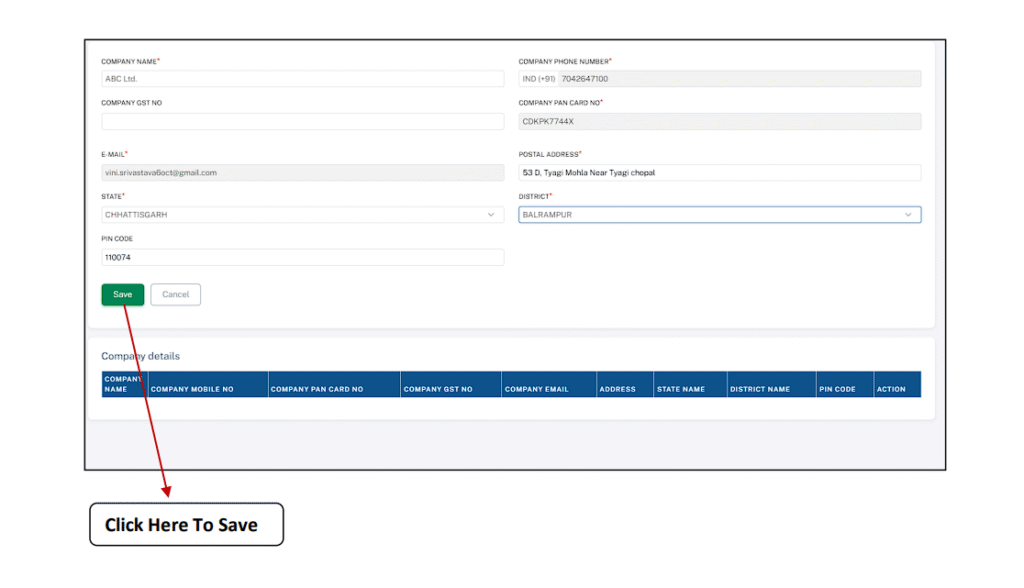
Once the User Profile is saved, you will be directed to the Company Profile page. Enter all company-related information, including tax details.
Company Profile Fields:
- Fill Company GST No.
- Fill Company PAN No.
- Click Here to Save
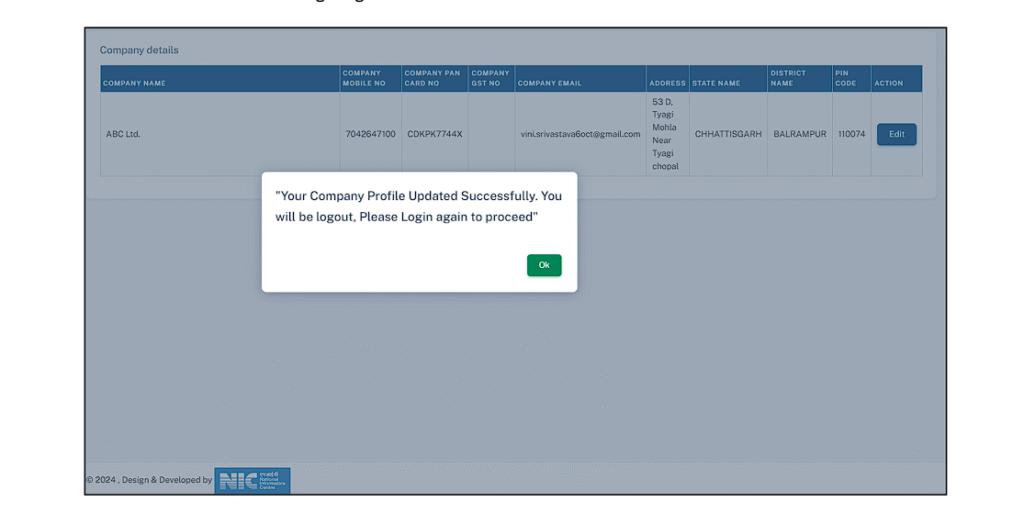
By Clicking save the Profile will be finalized, and a success message will appear.
Final Login to Access Bhuneer Dashboard
After finalizing both profiles, you must log in one final time. You will then be successfully redirected to the main dashboard, ready to submit your Fresh Application.
- Enter Email/Mobile/PAN Card
- Enter Password Here
- Enter Captcha Text
- Click to External Login
After successful login, you will be redirected to the Dashboard where you can apply for your CGWA NOC.
CRITICAL WARNING: CGWA Non-Compliance and Penalties
Illegal groundwater extraction is a serious offense under the Environment (Protection) Act, 1986. Non-compliance, including failure to apply for NOC, not installing mandatory digital meters, or delaying timely renewal, can result in severe legal action. Penalties often include hefty fines (up to ₹2 lakh per month), disconnection of power supply to the abstraction structure, and potential criminal prosecution. Ensure full compliance with the entire registration and application process.
Essential CGWA Process Guides
- → Step by Step guide to apply for New CGWA NOC
- → Step by step guide for renewal of CGWA NOC
- → Step by step process for import of NOCAP Application from CGWA portal
- → Step by step guide for CGWA Self inspection
- → CGWA Penalty Provisions & Legal Consequences
- → CGWA NOC Guidelines for Bulk Water Supply
- → CGWA Monitoring and Penalties (2025-26)
- → Environmental Compensation Rules (EC)
- → National Building Code (NBC) 2016 Water Requirements
Request Your Free CGWA Compliance Quote
Simplify your CGWA NOC application process 2025. Get expert support for application filing, document preparation, and compliance.
Call Us Today: 9279550247
Frequently Asked Questions (FAQs) on Bhuneer Portal Registration
1. Why is registration on the Bhuneer Portal mandatory?
Bhuneer Portal registration is the first step required to access the NOCAP system and submit your official CGWA NOC application for groundwater extraction. Without a registered account, you cannot apply, track, or manage your NOC status.
2. What credentials are required for the initial “New External User” registration?
The system requires three mandatory inputs for initial registration and OTP verification: a valid Mobile Number, a valid Email ID, and your Company’s or Individual’s PAN Number.
3. Why do I need to fill out User Profile and Company Profile separately after logging in?
The User Profile establishes your identity as the applicant (Name, Contact Details). The Company Profile establishes the legal entity applying for the NOC (GST, Company PAN). Both steps must be completed before the dashboard allows access to the “Apply for Fresh Application” link.
4. How do I get to the main NOC application form after successful registration?
After completing the password creation and filling both the User and Company Profiles (Steps 1-7), you must log in one final time. You will then be redirected to the main dashboard where the “Apply for Fresh Application” button becomes available.
5. Where do I go if I need to renew my old CGWA NOC?
Renewal must also be done through the Bhuneer Portal. You should first check if your old NOC data from the legacy NOCAP system needs to be migrated.
Click here for the step-by-step guide for renewal of CGWA NOC.